
The following scenario illustrates the procedure to perform the following tasks
-
Create a simple rules file with an allow rule
-
Test a rules file
-
Modify a rules file
-
Add a deny rule
-
Save a rules file to the MCP environment
-
Deploy a rules file
-
Delete a rule
Creating and Saving a Rules File
-
Right-click the TCP/IP Filtering node on the scope pane, and then click New Filtering Rules File to open the TCP/IP Filtering wizard.
-
Follow the instructions from the wizard.
On the Edit Rules dialog box, click Add and choose one of the following rule types:
-
Deny (The Edit Deny Rule dialog box appears.)
-
Allow (The Edit Allow Rule dialog box appears.)
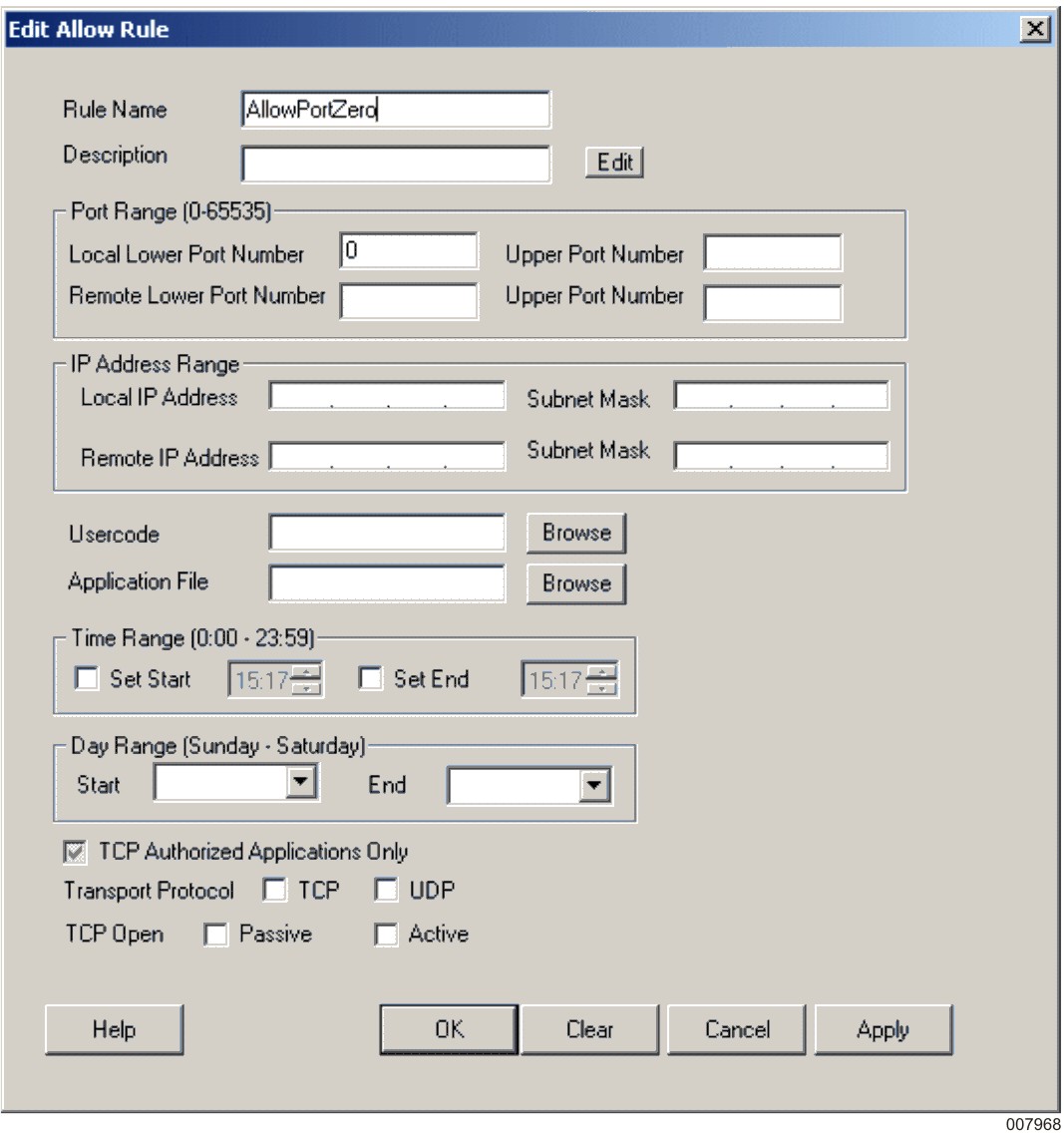
For this scenario, click Allow and add one allow rule that permits only local lower port number 0.
This example rule illustrates that traffic that does not match an existing allow rule in the rules file is denied.
-
-
Perform one of the following actions:
-
Click OK.
The new rule appears in the list of the rules file, and the wizard returns to the Edit Rules dialog box.
-
Click Apply.
The new rule appears in the list of the rules file. This new rule remains on the screen with a blank rule name and description to allow a duplicate of this rule.
-
-
To save the rule, click Next on the Edit Rules dialog box.
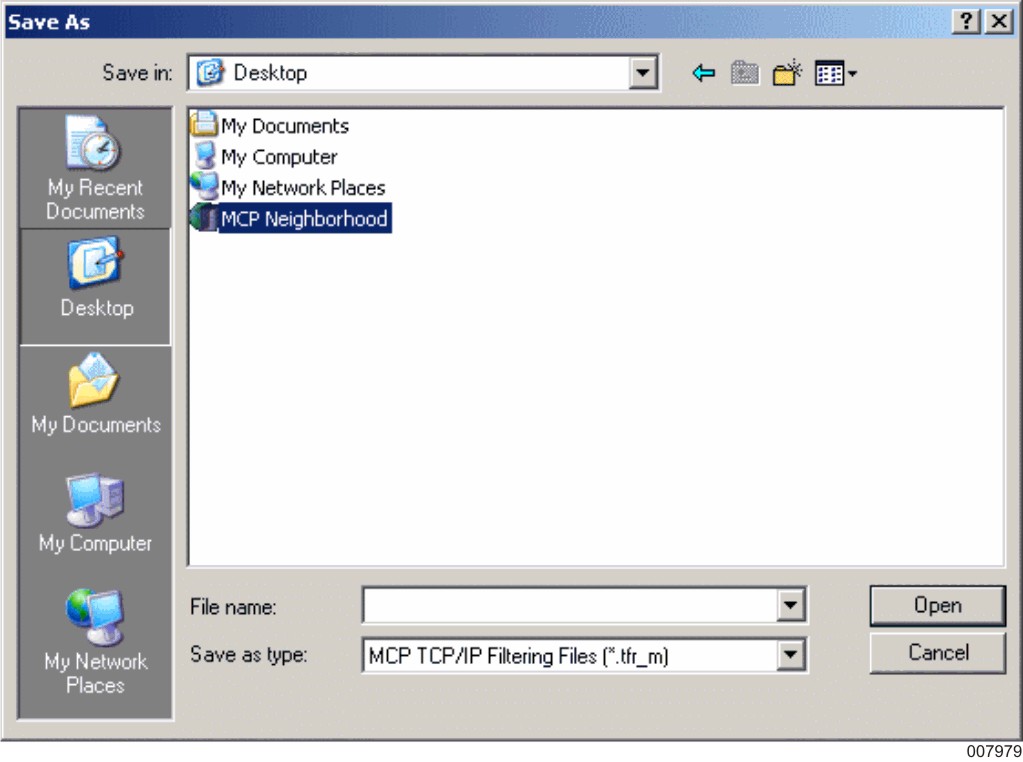
The Save As dialog box appears. You can save the file either locally in a Windows environment or remotely on an MCP server.
-
Select a path to save locally and click Save.
The Finish dialog box appears.
-
Enter an optional rules file description and click Finish.
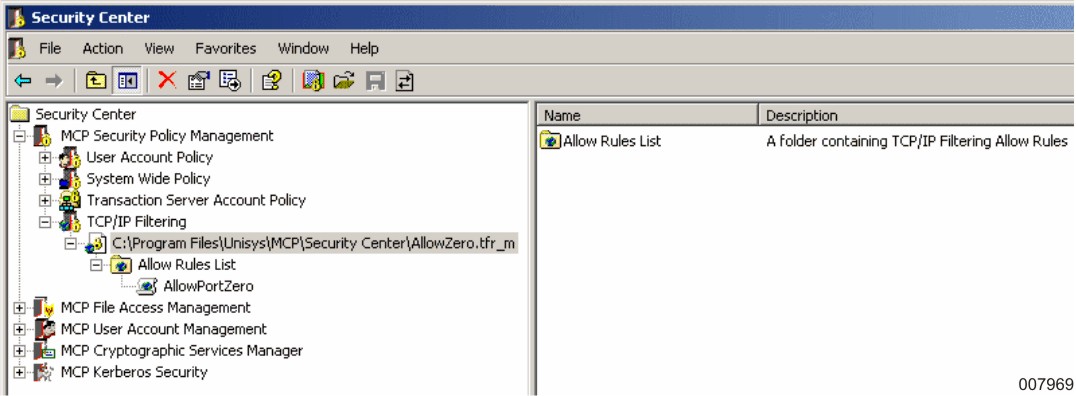
The new rules file is listed under the TCP/IP Filtering node on the scope pane.
Testing a Rules File
The TCP/IP Rules File Test wizard enables you to test individual TCP/IP rules files prior to deployment in the MCP environment.
Verify that traffic is denied by using the TCP/IP Rules File Test wizard.
-
Right-click the rules file and then click Test Filtering Rules File.
The TCP/IP Rules File Test wizard is initiated.
-
Follow the instructions from the wizard, choosing the Test TCP test option.
-
Test traffic on the local port range of 1 to 10000, also making sure to select the TCP Authorized Applications check box.
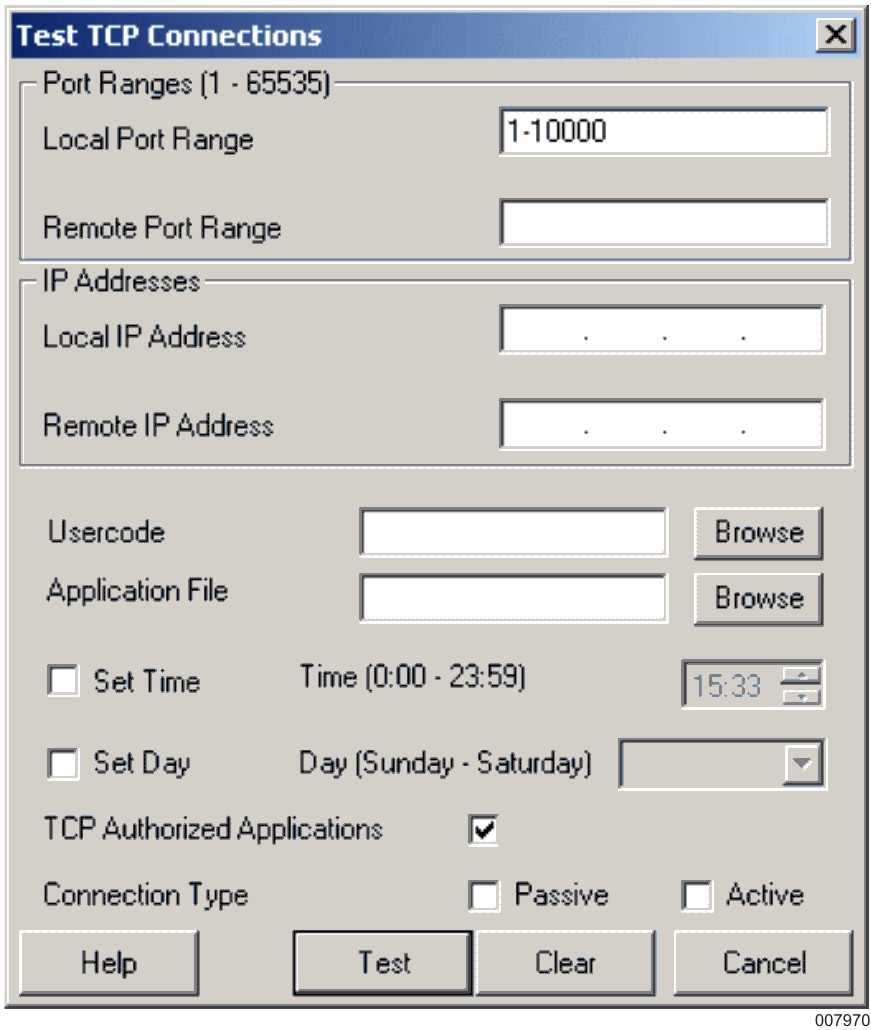
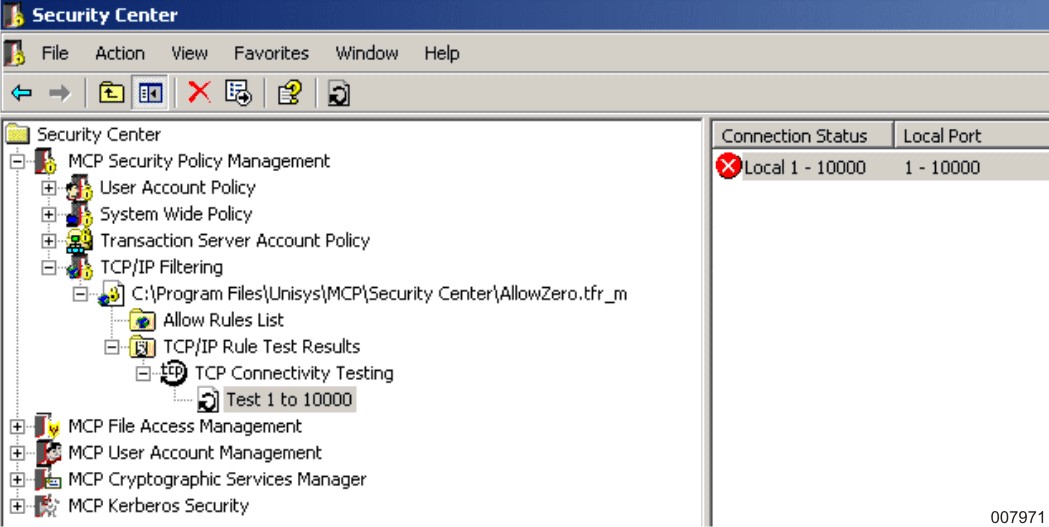
With this setting all traffic should be denied.
Modifying a Rules File
-
Expand the rules file in the scope pane to get individual rules.
-
Click a rule to get the attribute name and value on the result pane.
-
Right-click an attribute and then click Properties.
The properties dialog for that attribute is displayed.
-
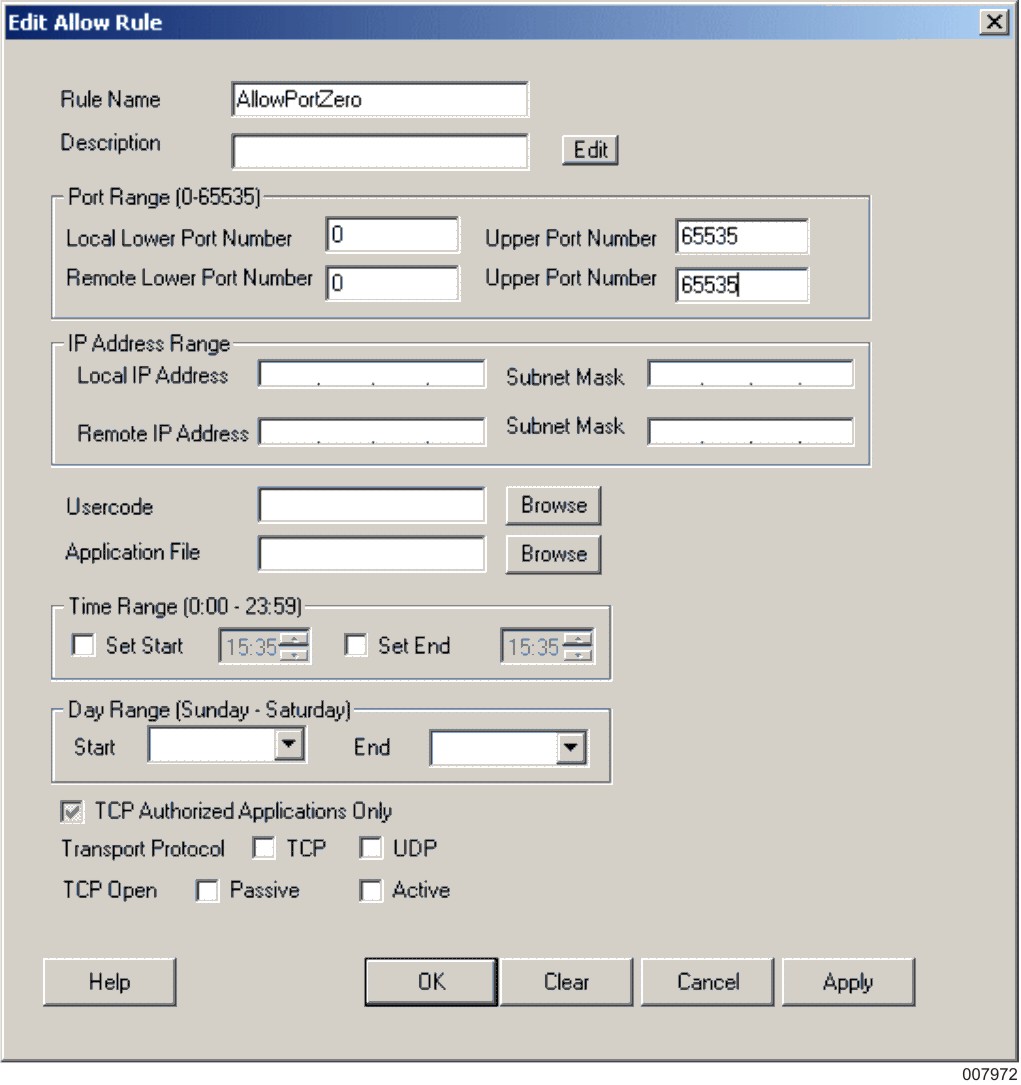
Alter the allow rule to permit traffic on the local port range of 0 to 65535, and the remote port range of 0 to 65535.
-
Right-click the existing test results from the previous test and click Re-evaluate Test Results.
-
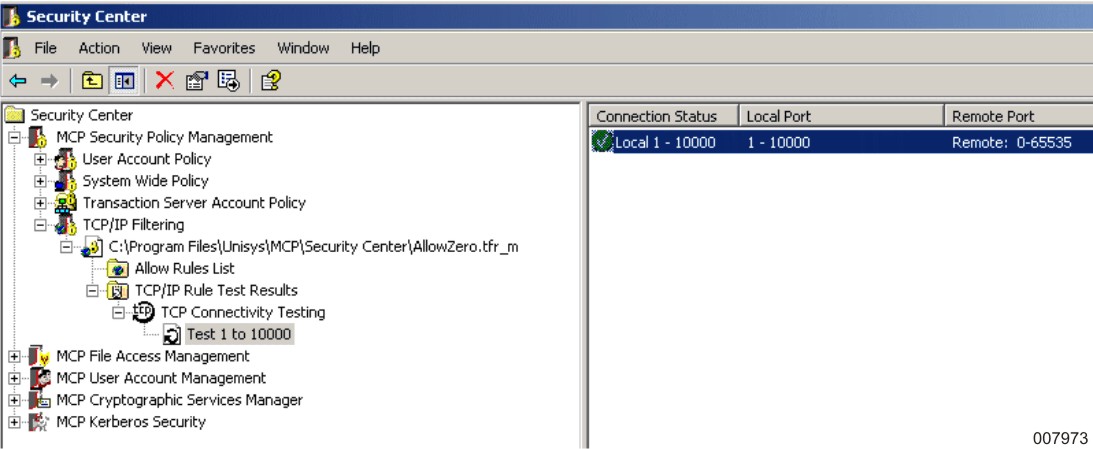
Verify that the results show that traffic on the local port range of 1 to 10000 is now allowed.
-
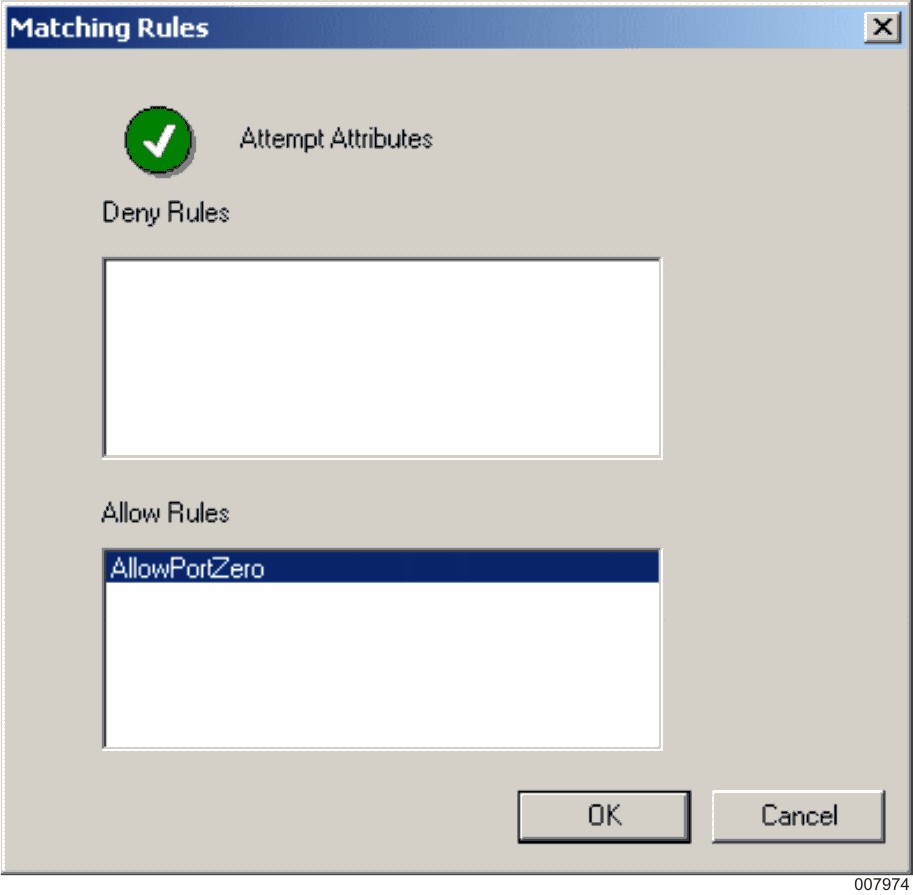
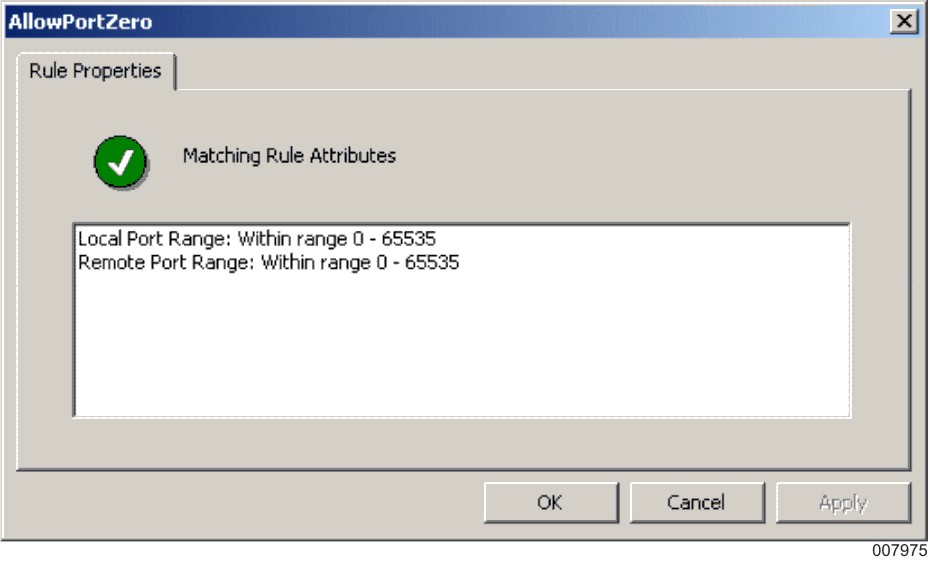
Double-click the results to verify that the modified allow rule specifically caused this traffic to be allowed.
Adding a Deny Rule
-
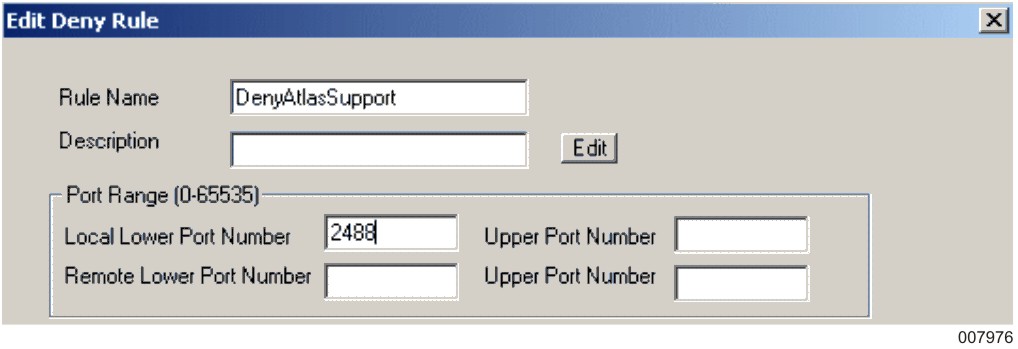
Use the rules file wizard again, and add a deny rule that will deny traffic for local port 2488.
-
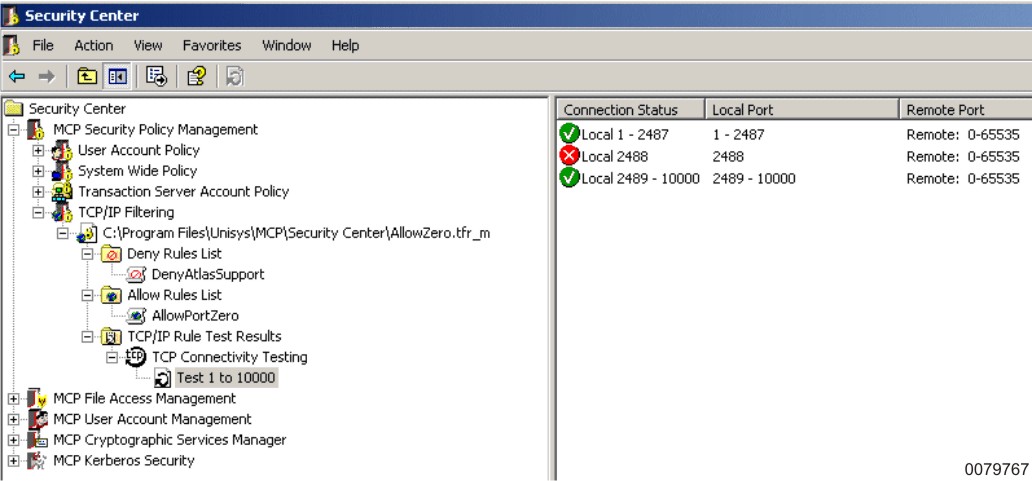
Right-click the existing test results from the previous test and click Re-evaluate Test Results.
-
Verify that three results now appear, indicating that traffic is allowed on local ports 1 to 2487, traffic is denied on local port 2488, and traffic is allowed on local ports 2489 to 10000.
-
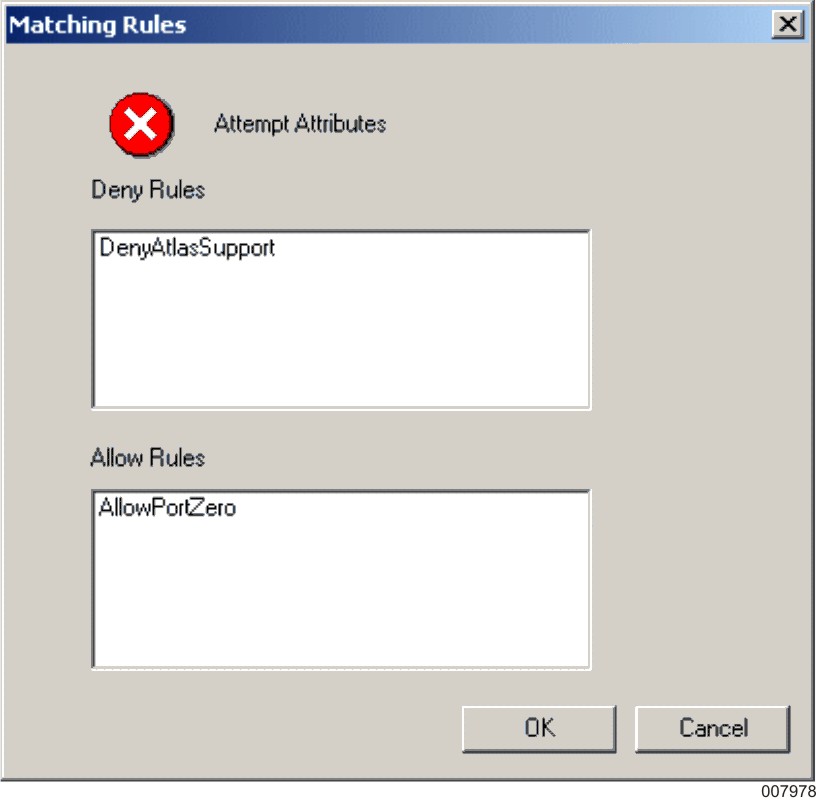
Double-click the denied result for local port 2488 to determine that while this traffic matches the allow rule of the rules file, it was denied first because it matched the deny rule of the rules file.
Saving a Rules File to the MCP Environment
Deploying a Rules File
-
Once the rules file has been saved to the MCP system, deploy the rules by entering
NW TCPIP SECURITY RELOAD "RULESFILENAME ON DISK"
-
Ensure that the filename in quotation marks accurately refers to the rules file that was just saved to the MCP system.
-
Confirm that the Web server of the MCP system is accessible by opening a Web browser and typing in its host name.
-
Attempt to access the Atlas Administration website of the MCP system by typing http://mcphostname:2488, where mcphostname equals the name of the MCP system.
-
Verify that access to the Atlas Administration website is not gained.
Deleting a Rule
Modify the rules file that was just deployed by deleting the deny rule.
-
Expand the rules file in the scope pane to get individual rules.
-
Select the deny rule and click Delete.
-
Right-click the existing test results and click Re-evaluate Test Results.
-
Confirm that local ports 1 to 10000 are all granted access because of the matching allow rule.
-
Save and deploy the rules file to the MCP environment again.
-
Attempt to access the Atlas Administration website again as previously described. Access to this site should now be granted.
